Modern mobile touchscreen devices provide customizable digital environments that significantly reduce cognitive strain for individuals navigating learning differences. By integrating built-in accessibility features with specialized applications, these portable tools help users process written language, organize complex thoughts, manage daily tasks, and bridge skill gaps effectively across educational and everyday life settings.
Core Software Functions and Assistive Capabilities
Text-to-Speech Processing Systems
Integrated screen readers and dedicated software applications convert printed or digital text into spoken audio files in real time. This auditory reinforcement helps individuals decode complex vocabulary without mental exhaustion. Highlighting text simultaneously as it is read aloud bridges decoding barriers and reinforces word recognition. Users can easily adjust playback speed, voice pitch, and visual highlighting colors to match their unique processing pace and personal comfort preferences during independent study sessions.
Speech-to-Text Dictation Tools
Voice recognition technology allows users to speak ideas aloud and have them transcribed into clean written text immediately. This functionality bypasses physical handwriting fatigue and mechanical spelling obstacles that often disrupt creative flow. Modern dictation engines recognize natural speech patterns and punctuation commands with high reliability. Learners who experience severe dysgraphia or executive dysfunction find this tool transformative for drafting essays, writing detailed emails, and organizing personal notes without traditional keyboard anxiety.
Predictive Word Assistance
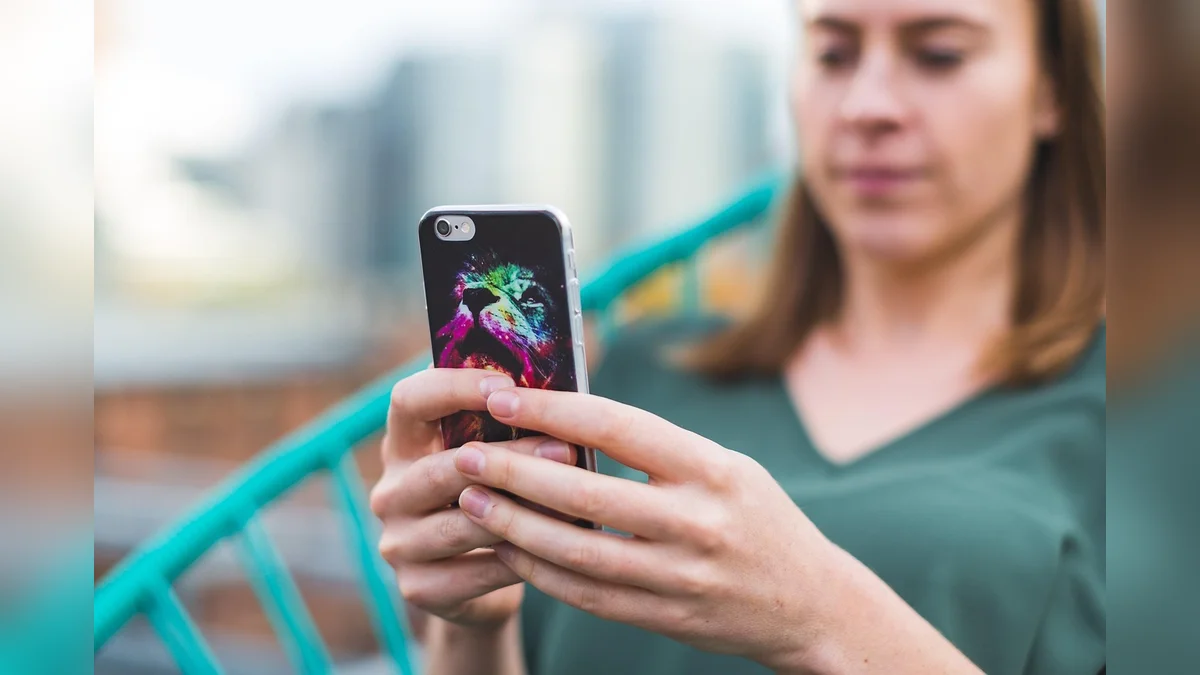
Intelligent word prediction programs suggest relevant vocabulary options as the user types individual letters on a virtual screen. By analyzing sentence context and grammatical rules, these utilities reduce keystroke demands and minimize spelling errors. Learners can select intended words from a small pop-up list rather than struggling through manual letter-by-letter spelling. This supportive scaffolding builds long-term confidence and accelerates written communication speed across various academic and professional digital platforms.
Visual Graphic Organizers
Digital mind-mapping and diagramming applications enable users to structure abstract concepts into visual hierarchies and interconnected nodes. Instead of relying exclusively on linear outlines, learners can drag and drop icons, color-code categories, and attach audio notes to core ideas. This spatial representation accommodates non-linear thinking styles, clarifies cause-and-effect relationships, and simplifies project planning. It provides a flexible canvas for brainstorming before transitioning into structured written or verbal presentations.

Hardware Selection and Everyday Integration
Choosing an appropriate touchscreen device involves evaluating screen dimensions, built-in operating system accessibility suites, battery longevity, and stylus compatibility to ensure seamless daily support.
| Feature Category | Primary Support Benefit | Practical Reader Check |
|---|---|---|
| Display Customization | Adjusts font size, contrast, and color filters to ease visual tracking. | Test night mode and high-contrast settings before long reading sessions. |
| Audio Integration | Provides spoken feedback and high-definition dictation microphone performance. | Verify external headphone or Bluetooth speaker clarity in quiet rooms. |
| Stylus Precision | Allows natural handwriting practice and direct diagram annotations. | Check palm-rejection responsiveness and tip friction on glass surfaces. |
| Cloud Syncing | Keeps notes and audio recordings accessible across multiple personal devices. | Confirm automatic backup settings to prevent accidental file loss. |
Actionable Steps for Evaluating Digital Tools
- Review built-in accessibility menus to activate native text-to-speech and high-contrast display options immediately.
- Test third-party dictation apps in quiet environments to verify speech recognition accuracy for personal vocabulary.
- Explore digital graphic organizers that support color-coded mind maps and simple drag-and-drop node creation.
- Consult local library resources or educational specialists for hands-on device loan programs and tutorials.
Frequently Asked Questions
Do these devices require specialized medical diagnoses to operate?
No formal medical diagnosis is required to adjust built-in accessibility settings or download educational software. Operating systems offer open-ended customization menus designed for any user seeking improved reading comfort, clearer audio reinforcement, or better structural organization during daily tasks.
How do touchscreen tools differ from traditional desktop computers?
Touchscreen devices offer direct tactile interaction, built-in cameras for quick document scanning, and lightweight portability. Their streamlined interfaces reduce desktop clutter, while integrated operating system tools provide immediate access to voice commands and screen magnification without complex setup.

Can these digital features assist with long-term skill retention?
Yes, multi-sensory engagement combining visual text, spoken audio, and active tactile input strengthens memory retention. Rather than merely replacing cognitive effort, supportive software scaffolds difficult tasks so learners can focus on comprehension and critical thinking.
Conclusion
Leveraging digital touchscreen tools empowers individuals to bypass specific learning obstacles while strengthening core cognitive capacities through customized multi-sensory support. Exploring native accessibility settings on an existing device serves as an immediate, practical starting point for building a more accommodating and confident daily routine.