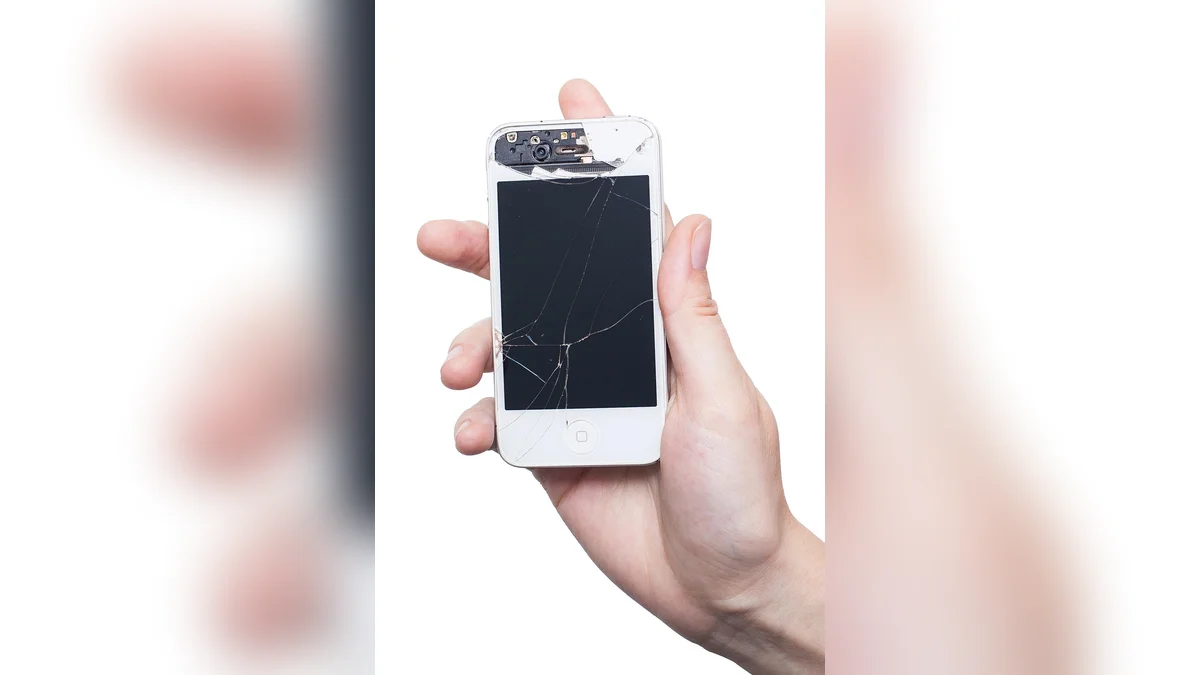
Modern mobile phones pack heavy layers of software menus, dynamic gestures, and endless notification alerts that can easily overwhelm daily users. By methodically adjusting built-in operating system preferences, cleaning up home screen layouts, and utilizing specialized display modifications, you can transform a complex touchscreen handset into a calm, predictable, and stress-free digital communication tool.
Core Settings and Display Adjustments
Refining Text Sizes and Screen Contrast
Visual comfort serves as the foundation for any straightforward mobile experience because tiny fonts and dim contrast create constant eye fatigue during everyday reading tasks. Head into the built-in operating system preferences to expand default system fonts and toggle bold text options across menus. You can also adjust display scaling so icons and labels appear larger on the panel without breaking layout structures. These foundational tweaks eliminate accidental squinting and make reading incoming text messages, checking weather updates, or browsing saved contact lists much more comfortable for daily use.
Customizing Touch Sensitivity and Response
Rapid finger swipes and subtle multi-touch gestures can often lead to unintended screen jumps or accidental app closures during regular operation. Adjusting touch accommodation settings allows you to lengthen the required hold duration for a tap to register properly. You can also enable physical shortcut buttons that bypass complicated software navigation whenever you want to return straight to the main desktop. Exploring tools like Apple Support AssistiveTouch Guide reveals how to anchor a simple on-screen menu button for instant access to common actions.

Decluttering the Home Screen Grid
A cluttered desktop filled with dozens of flashing notification badges and unrequested application icons creates cognitive friction every time the display wakes up. Start by deleting unused preinstalled software or hiding non-essential utility tools inside a single tucked-away folder. Keep only your core communication applications like phone dialing, video messaging, and emergency contacts directly on the primary page. Arranging these vital tools in a clean, predictable grid ensures that finding a specific contact or launching a favorite camera app requires zero searching or hesitation.
Activating Guided Control Modes
Specialized interface environments allow you to strip away complex menus entirely and lock the display into a customized, high-contrast operational layout. Software solutions such as Apple Assistive Access Setup Guide provide a dedicated mode featuring oversized icons and simplified communication apps. This specialized layer restricts unauthorized setting changes while keeping calls, photos, and messages immediately accessible. Establishing a separate exit passcode ensures that the simplified environment remains stable during daily routines without risking accidental exits into deep system menus.
Practical Navigation and Routine Maintenance
Maintaining a streamlined phone environment requires a brief weekly review to clear out stray notifications and verify that speaker volumes match your personal hearing preference. Regularly testing emergency shortcut clicks and updating saved favorite contacts keeps the device reliable without introducing sudden layout surprises or unwanted software updates.
| Adjustment Area | Standard Setting | Streamlined Configuration |
|---|---|---|
| Display Text | Default tiny font scale | Enlarged bold system typography |
| Home Layout | Multiple crowded app pages | Single page with essential tools |
| Touch Actions | Instant rapid gesture swipes | Adjusted hold duration and shortcuts |
| App Interface | Full complex menu systems | Simplified dedicated mode view |
Steps to Verify Your Setup
- Inspect the main home screen to confirm that only essential apps remain visible.
- Test the volume and speaker clarity by placing a quick test phone call.
- Check the lock screen settings so time and important alerts stay legible.
- Practice using the dedicated return button to get back home smoothly.
Frequently Asked Questions
Will simplifying the interface hide my personal photos and contacts?
No, organizing or shrinking your home screen layout simply hides shortcuts from view rather than deleting any stored files, personal photos, or saved telephone numbers from cloud storage.
Can I reverse these visual and menu changes later?
Yes, all display enlargements, button adjustments, and specialized mode configurations can be toggled off or modified anytime through the standard system preferences menu.

Does a simplified setup drain the battery faster?
Actually, reducing background clutter and lowering unnecessary screen animations often preserves battery life throughout the day by cutting down on constant processor activity.
Conclusion
Simplifying a smartphone interface turns a complex pocket computer into a reliable, calm extension of your daily routine. Take five minutes today to open your display settings and enlarge the text size to see the immediate difference.